WORK QUEUES
Use this window in order to see the progression and result of the generating and load processes. This option is included in the section "APP".
The following explanation is a summary of the purpose of the work queueues, for more detail, please go to the Load or Generate sections of this guide.
Columns or fields
- User: user from the company that executes the job
- Filename: name of the template
- Type: job type (generate-load)
- Status: job status (not started, started, finished)
- Environment: environment where the template was generated from
- Client: client where the template was generated from
- Creation: job date
- Start: job start date
- Finish: job finish date
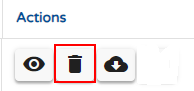
- Actions: Details, Delete, Download Template
Actions
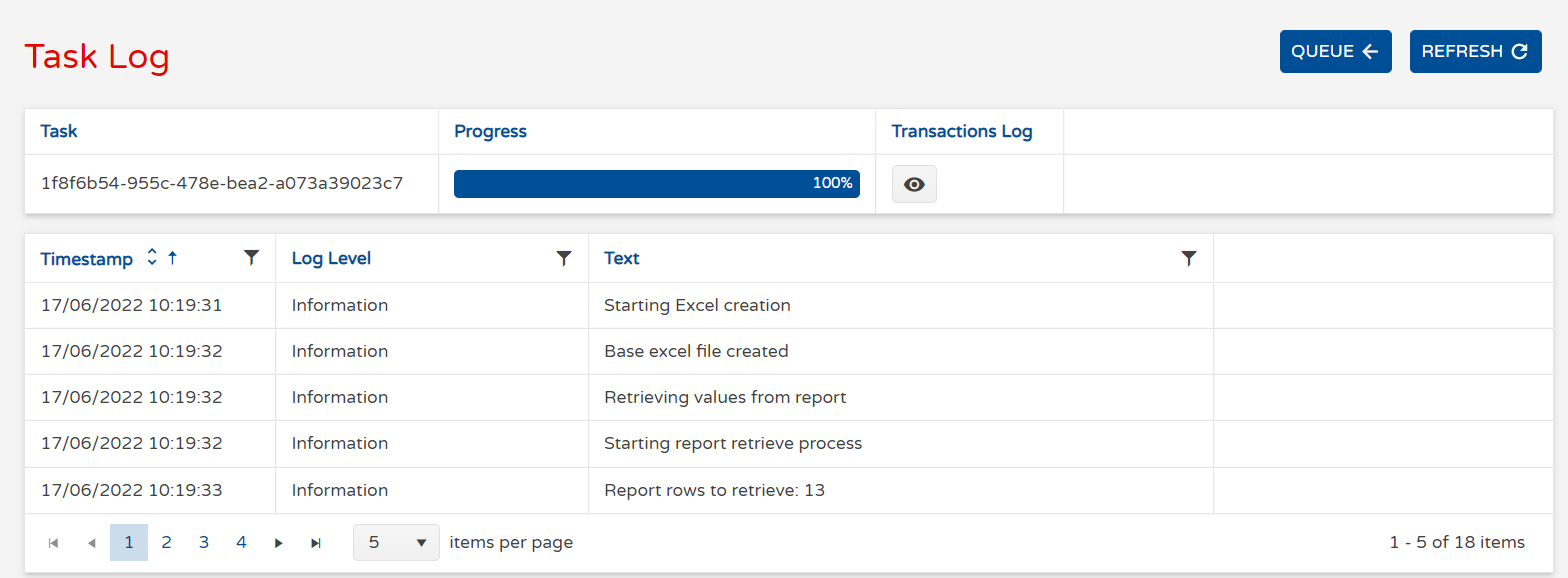
1. Details
This option opens the "Task log" screen". From the transaction where detailed information for the data processing can be found, such as the identifier of the task and the time each phase took place
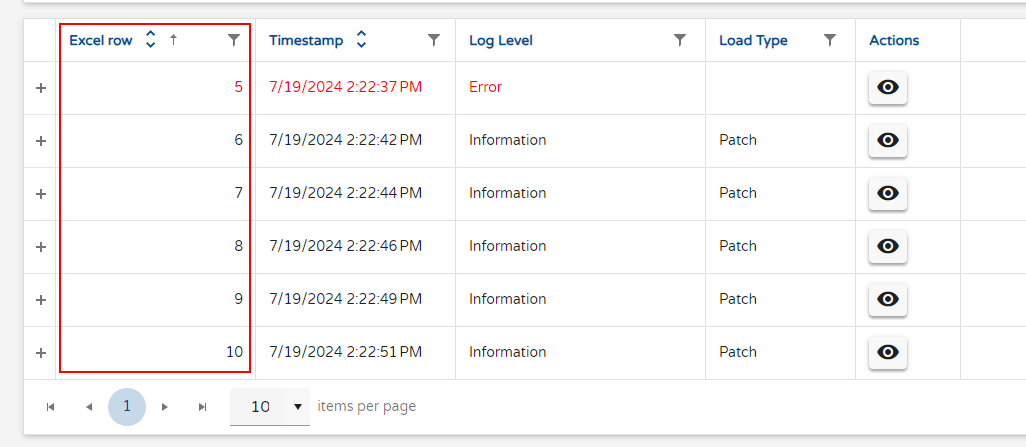
At the bottom of this window, the grid will show each row of the template and the output obtained from the API call. Here, you can check whether an upload was successful or if it had an error.
2. Delete
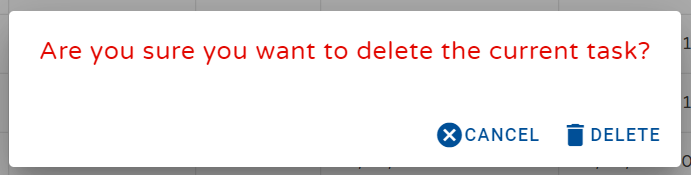
This option allows to delete the task.
3. Download
This option allows to download the excel template, this is normally the purpose when "generating" the template. When "loading" it is also a good practice to download the template if an error has occurred in order to see the type of the error detailed in the file. This should be done through the menu option: ""Action Details/Tasklog". "